为 macOS 平台编译
备注
本页面描述的是如何从源码编译 macOS 编辑器和导出模板二进制文件。如果你想要将项目导出到 macOS,请移步《为 macOS 导出》。
需求
在 macOS 下编译时,需要以下条件:
SCons 4.0+ build system.
Xcode(或更轻量的 Xcode 命令行工具)。
Vulkan SDK for MoltenVK (macOS doesn't support Vulkan out of the box). The latest Vulkan SDK version can be installed quickly by running
misc/scripts/install_vulkan_sdk_macos.shwithin the Godot source repository.
编译
启动终端, 进入引擎源代码的根目录.
To compile for Intel (x86-64) powered Macs, use:
scons platform=macos arch=x86_64
To compile for Apple Silicon (ARM64) powered Macs, use:
scons platform=macos arch=arm64
小技巧
If you are compiling Godot to make changes or contribute to the engine,
you may want to use the SCons options dev_build=yes or dev_mode=yes.
See 开发别名与生产别名
for more info.
If all goes well, the resulting binary executable will be placed in the
bin/ subdirectory. This executable file contains the whole engine and
runs without any dependencies. Executing it will bring up the Project
Manager.
备注
Using a standalone editor executable is not recommended, it should be always packaged into a
.app bundle to avoid UI activation issues.
备注
如果你想为自己的 Godot 构建和官方发布使用单独的编辑器设置,你可以通过在 bin/ 文件夹中创建一个名为 ._sc_ 或 _sc_ 的文件来启用 自包含模式。
Compiling with AccessKit support
AccessKit provides support for screen readers.
By default, Godot is built with AccessKit dynamically linked. You can use it by placing
accesskit.dylib alongside the standalone executable or in the app bundle's Frameworks folder.
备注
You can use dynamically linked AccessKit with export templates as well, rename
the DYLIB to accesskit.{architecture}.dylib
and place them inside the export template app bundle Frameworks folder, and the
libraries will be automatically copied during the export process.
To compile Godot with statically linked AccessKit:
Download the pre-built static libraries from godot-accesskit-c-static library, and unzip them.
When building Godot, add
accesskit_sdk_path={path}to tell SCons where to look for the AccessKit libraries:scons platform=macos accesskit_sdk_path=<...>
备注
You can optionally build the godot-angle-static libraries yourself with the following steps:
Clone the godot-accesskit-c-static directory and navigate to it.
Run the following command:
cd accesskit-c
cmake -S . -B build -DCMAKE_BUILD_TYPE=Release
cmake --build build
cmake --install build
The AccessKit static library should be built using the same compiler you are using for building Godot.
自动创建 .app 捆绑包
To automatically create a .app bundle like in the official builds, use the generate_bundle=yes option on the last
SCons command used to build editor:
scons platform=macos arch=x86_64
scons platform=macos arch=arm64 generate_bundle=yes
手动创建 .app 捆绑包
To support both architectures in a single "Universal 2" binary,
run the above two commands and then use lipo to bundle them together:
lipo -create bin/godot.macos.editor.x86_64 bin/godot.macos.editor.arm64 -output bin/godot.macos.editor.universal
To create a .app bundle, you need to use the template located in misc/dist/macos_tools.app. Typically, for an optimized
editor binary built with dev_build=yes:
cp -r misc/dist/macos_tools.app ./bin/Godot.app
mkdir -p bin/Godot.app/Contents/MacOS
cp bin/godot.macos.editor.universal bin/Godot.app/Contents/MacOS/Godot
chmod +x bin/Godot.app/Contents/MacOS/Godot
codesign --force --timestamp --options=runtime --entitlements misc/dist/macos/editor.entitlements -s - bin/Godot.app
备注
If you are building the master branch, you also need to include support
for the MoltenVK Vulkan portability library. By default, it will be linked
statically from your installation of the Vulkan SDK for macOS.
You can also choose to link it dynamically by passing use_volk=yes and
including the dynamic library in your .app bundle:
mkdir -p <Godot bundle name>.app/Contents/Frameworks
cp <Vulkan SDK path>/macOS/lib/libMoltenVK.dylib <Godot bundle name>.app/Contents/Frameworks/libMoltenVK.dylib
运行无头/服务器构建
To run in headless mode which provides editor functionality to export projects in an automated manner, use the normal build:
scons platform=macos target=editor
And then use the --headless command line argument:
./bin/godot.macos.editor.x86_64 --headless
To compile a debug server build which can be used with remote debugging tools, use:
scons platform=macos target=template_debug
To compile a release server build which is optimized to run dedicated game servers, use:
scons platform=macos target=template_release production=yes
构建导出模板
To build macOS export templates, you have to compile using the targets without
the editor: target=template_release (release template) and
target=template_debug.
Official templates are Universal 2 binaries which support both ARM64 and Intel x86_64 architectures.
To support ARM64 (Apple Silicon) + Intel x86_64:
scons platform=macos target=template_debug arch=arm64
scons platform=macos target=template_release arch=arm64
scons platform=macos target=template_debug arch=x86_64
scons platform=macos target=template_release arch=x86_64 generate_bundle=yes
To support ARM64 (Apple Silicon) only (smaller file size, but less compatible with older hardware):
scons platform=macos target=template_debug arch=arm64
scons platform=macos target=template_release arch=arm64 generate_bundle=yes
To create a .app bundle like in the official builds, you need to use the
template located in misc/dist/macos_template.app. This process can be automated by using
the generate_bundle=yes option on the last SCons command used to build export templates
(so that all binaries can be included). This will create a godot_macos.zip file in bin/
and additionally takes care of calling lipo to create a Universal 2 binary from two separate
ARM64 and x86_64 binaries (if both were compiled beforehand).
备注
You also need to include support for the MoltenVK Vulkan portability
library. By default, it will be linked statically from your installation of
the Vulkan SDK for macOS. You can also choose to link it dynamically by
passing use_volk=yes and including the dynamic library in your .app
bundle:
mkdir -p macos_template.app/Contents/Frameworks
cp <Vulkan SDK path>/macOS/libs/libMoltenVK.dylib macos_template.app/Contents/Frameworks/libMoltenVK.dylib
In most cases, static linking should be preferred as it makes distribution easier. The main upside of dynamic linking is that it allows updating MoltenVK without having to recompile export templates.
If you created the .app manually, you can zip the macos_template.app folder
to reproduce the macos.zip template from the official Godot distribution:
zip -r9 macos.zip macos_template.app
To use your custom export templates, you can select the godot_macos.zip file in
the advanced options of your export presets:
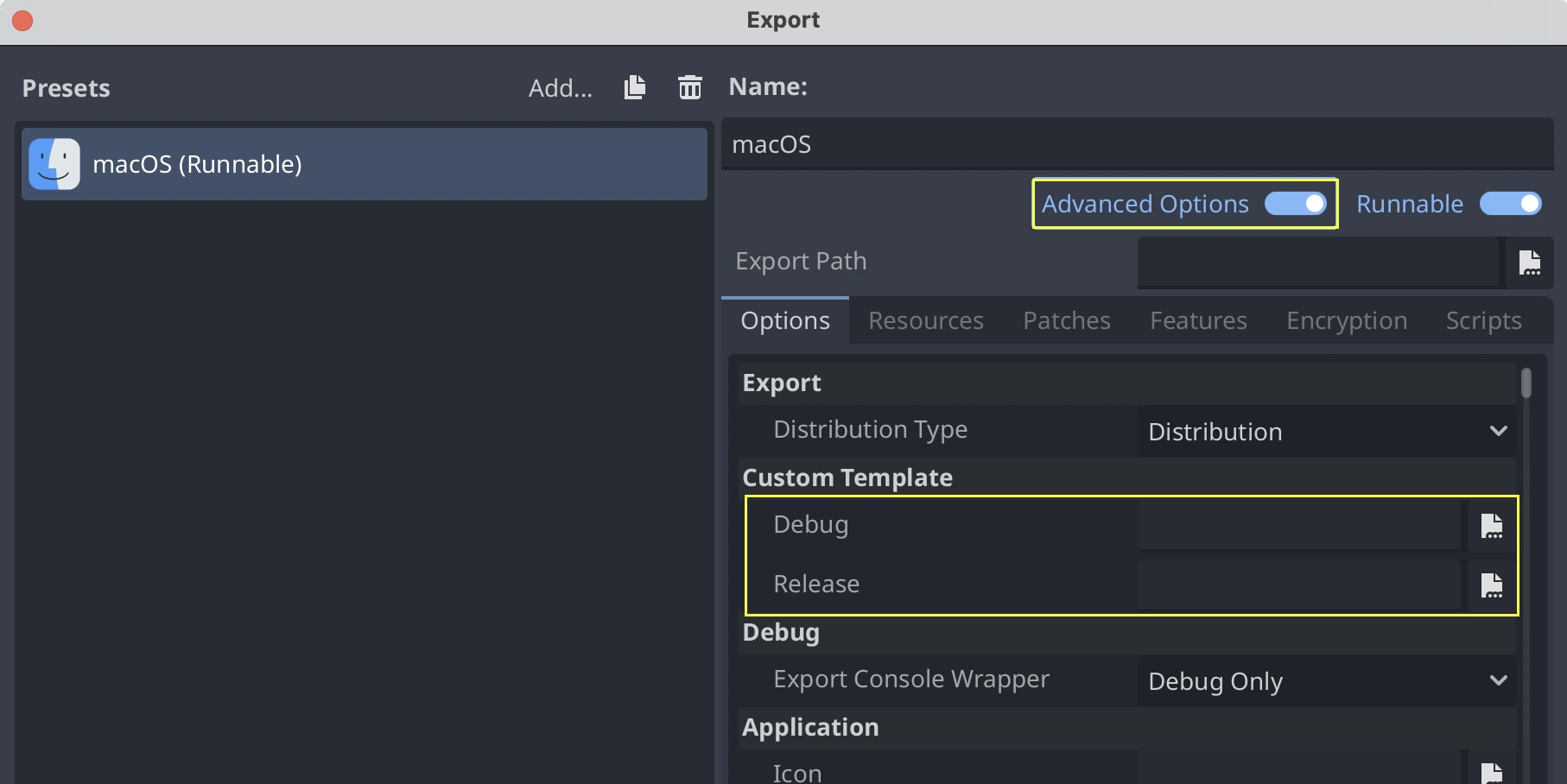
Alternatively, if you want all your presets to use your custom export template, you
can rename the godot_macos.zip file to macos.zip and move it to the default
location for export templates:
- ::
~/Library/Application Support/Godot/export_templates/<GODOT_VERSION>/macos.zip
从 Linux 交叉编译 macOS
在Linux环境下为macOS进行编译是可行的(也许也可以在Windows中使用Windows Subsystem for Linux). 为此, 你需要安装 OSXCross , 以便能够使用macOS作为目标. 首先, 按照说明来安装它:
Clone the OSXCross repository somewhere on your machine (or download a ZIP file and extract it somewhere), e.g.:
git clone --depth=1 https://github.com/tpoechtrager/osxcross.git "$HOME/osxcross"
按照说明打包SDK:https://github.com/tpoechtrager/osxcross#packaging-the-sdk
按照说明安装OSXCross:https://github.com/tpoechtrager/osxcross#installation
After that, you will need to define the OSXCROSS_ROOT as the path to
the OSXCross installation (the same place where you cloned the
repository/extracted the zip), e.g.:
export OSXCROSS_ROOT="$HOME/osxcross"
Now you can compile with SCons like you normally would:
scons platform=macos
If you have an OSXCross SDK version different from the one expected by the SCons buildsystem, you can specify a custom one with the osxcross_sdk argument:
scons platform=macos osxcross_sdk=darwin15
故障排除
Fatal error: 'cstdint' file not found
If you get a compilation error of this form early on, it's likely because the Xcode command line tools installation needs to be repaired after a macOS or Xcode update:
./core/typedefs.h:45:10: fatal error: 'cstdint' file not found
45 | #include <cstdint>
   |          ^~~~~~~~~
Run these two commands to reinstall Xcode command line tools (enter your administrator password as needed):
sudo rm -rf /Library/Developer/CommandLineTools
sudo xcode-select --install
If it still does not work, try updating Xcode from the Mac App Store and try again.