CLion
CLion is a JetBrains IDE for C++ that's free for individual, non-commercial development.
导入项目
CLion 可以导入项目的编译数据库文件,通常名叫 compile_commands.json。要生成这个编译数据库文件,请打开终端,切换到 Godot 根目录,然后执行:
scons compiledb=yes compile_commands.json
Then, open the Godot root directory with CLion and wait for the project to be fully
indexed. If code completion, parameter information, or refactoring are not enabled,
you will need to load the project with CMake. To do this, find the CMakeLists.txt
file in the platform\android\java\nativeSrcsConfigs directory, right click and
select . Once the project reloads, a godot build configuration
will be added. This configuration can be safely deleted as the CMake file will not
build the project and only exists for loading the project in JetBrains IDEs.
备注
Windows Users:
For
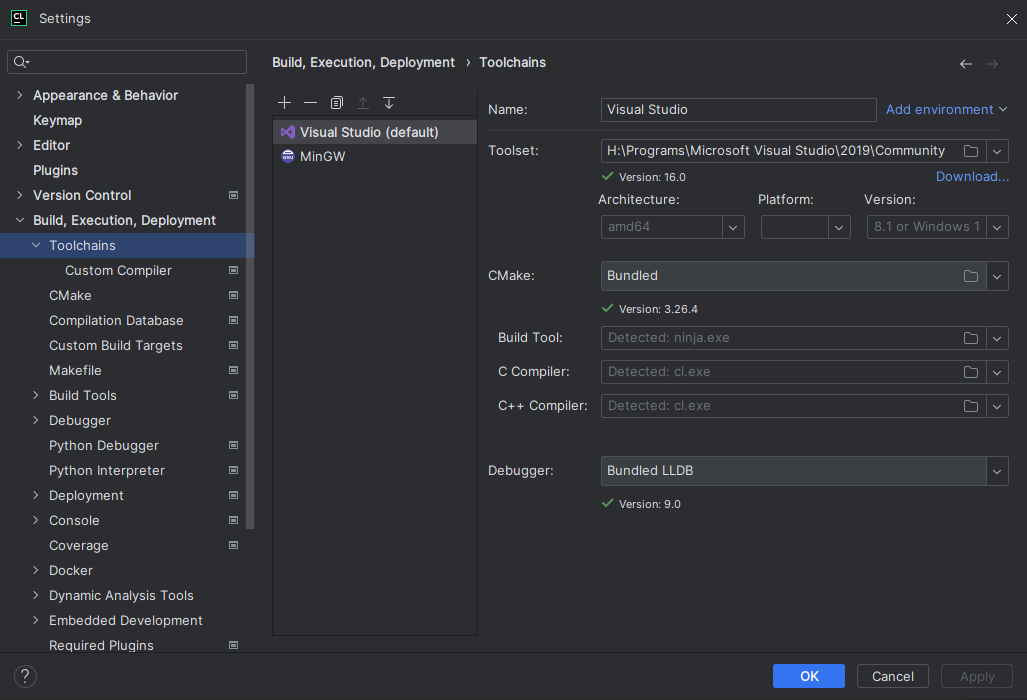
compile_commands.jsonto load correctly in CLion, you must first have the Visual Studio toolchain configured for CLion.
Navigate to Preferences > Build, Execution, Deployment > Toolchains
Click the + button and select
Visual StudioCLion will attempt to detect your Visual Studio installation. If it is unsuccessful, use the file icon to the right of
Toolset:to select the directory with your Visual Studio installation.You may exit and reload CLion and it will reload
compile_commands.json
项目的编译与调试
CLion does not support compiling and debugging Godot via SCons out of the box. This can be achieved by creating a custom build target and run configuration in CLion. Before creating a custom build target, you must compile Godot once on the command line, to generate the Godot executable. Open the terminal, change into the Godot root directory, and execute:
scons dev_build=yes
To add a custom build target that invokes SCons for compilation:
Open CLion and navigate to Preferences > Build, Execution, Deployment > Custom Build Targets
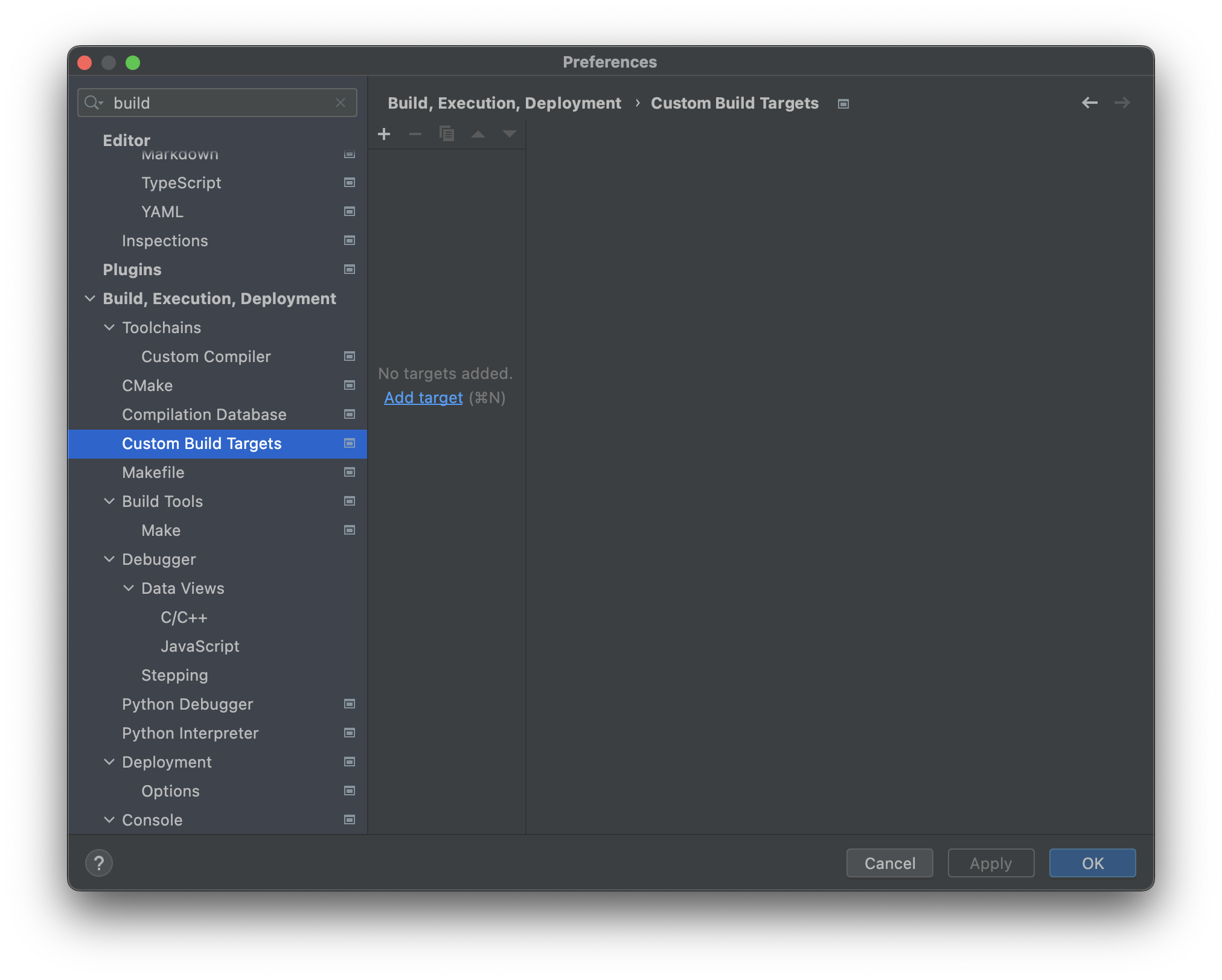
Click Add target and give the target a name, e.g.
Godot debug.
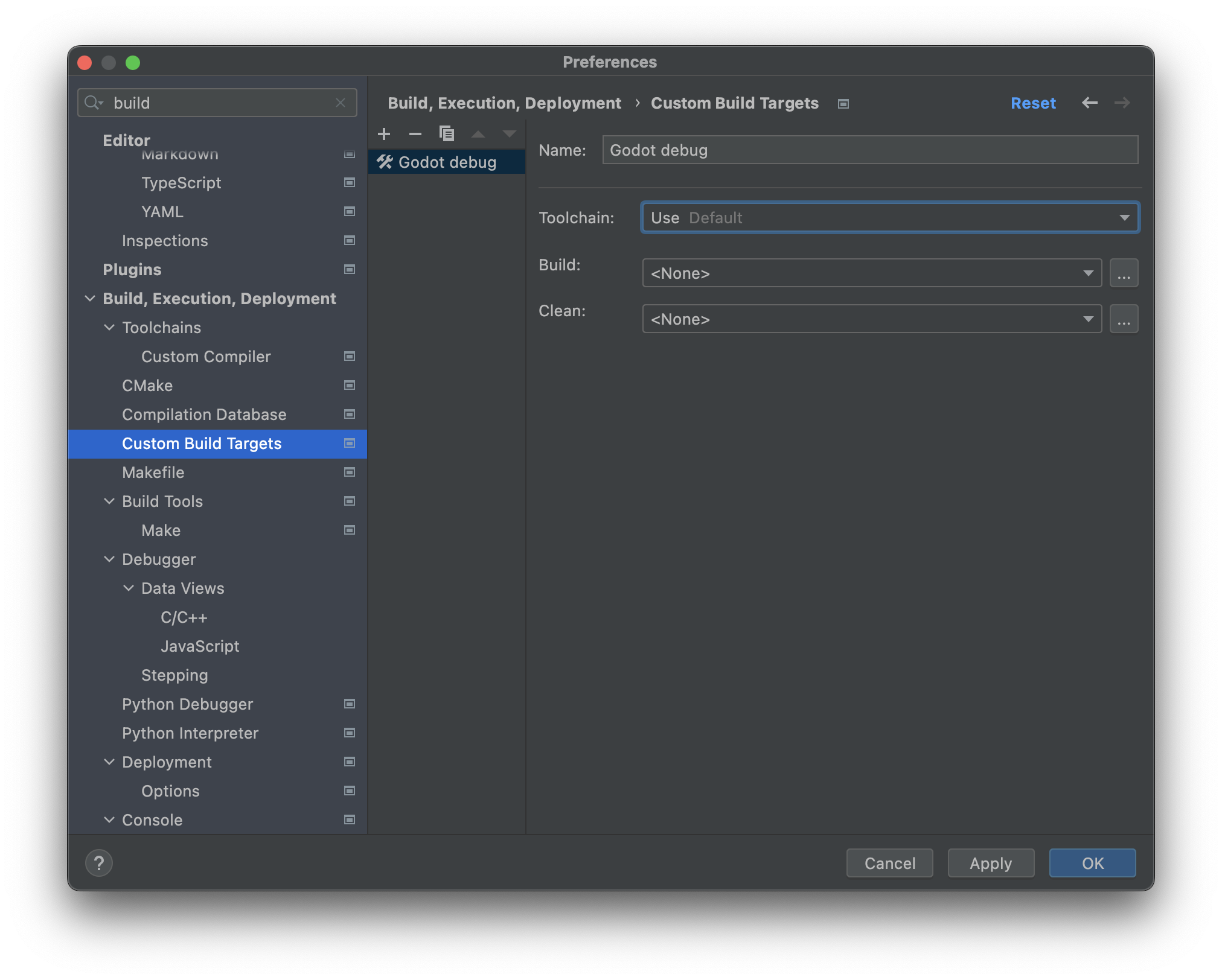
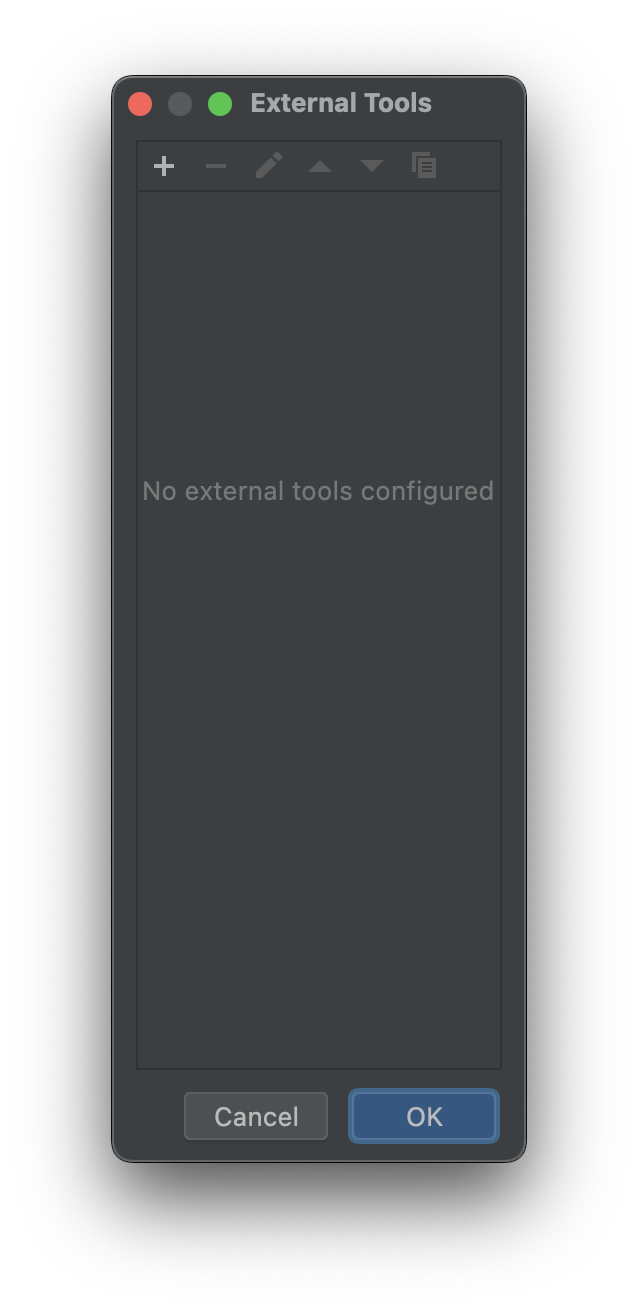
Click ... next to the Build: selectbox, then click the + button in the External Tools dialog to add a new external tool.
Give the tool a name, e.g.
Build Godot debug, set Program toscons, set Arguments to the compilation settings you want (see compiling Godot), and set the Working directory to$ProjectFileDir$, which equals the Godot root directory. Click OK to create the tool.备注
CLion 不会扩展类似
scons -j$(nproc)这样的 shell 命令。请使用具体的值,例如scons -j8。
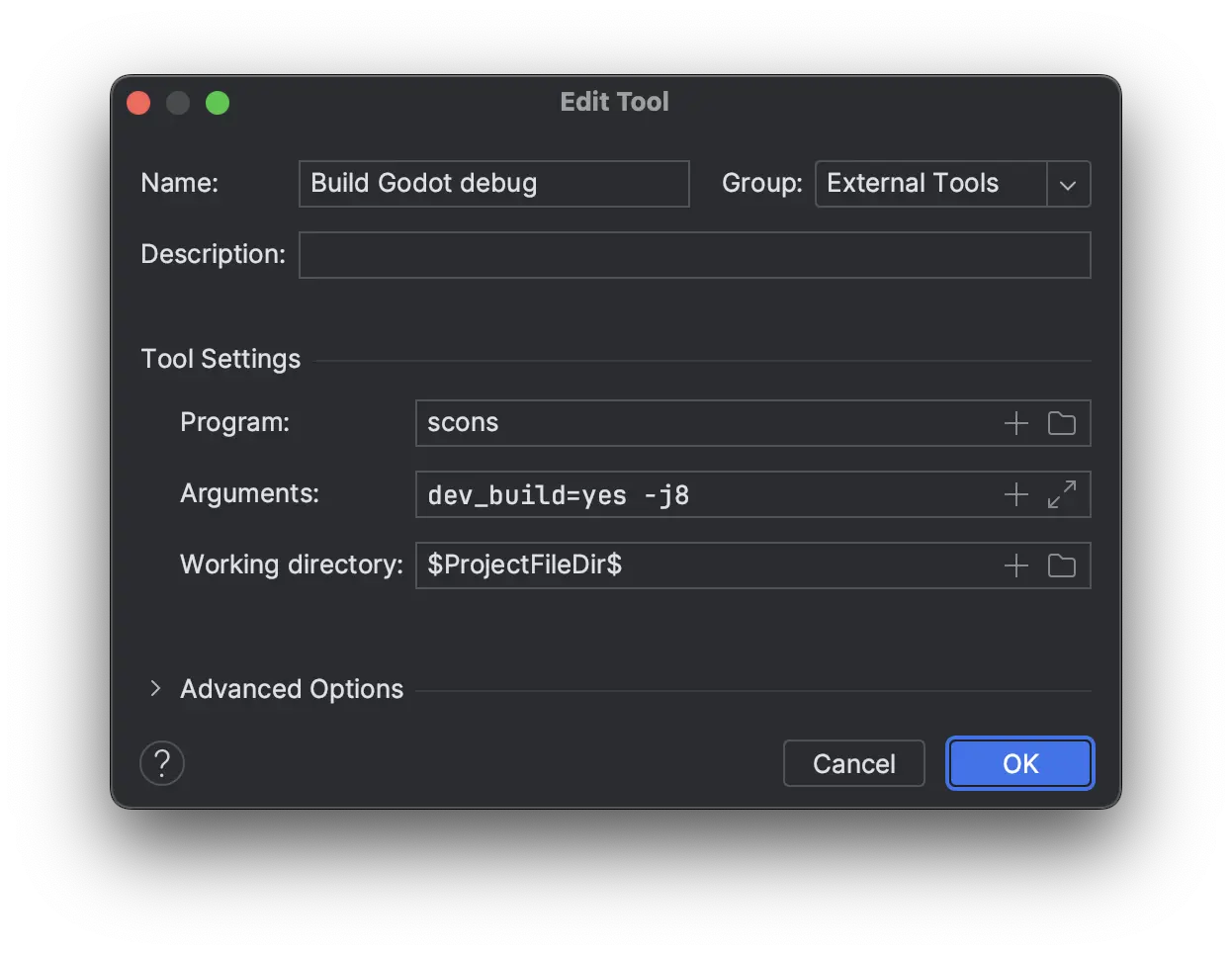
Back in the External Tools dialog, click the + again to add a second external tool for cleaning the Godot build via SCons. Give the tool a name, e.g.
Clean Godot debug, set Program toscons, set Arguments to-c(which will clean the build), and set the Working directory to$ProjectFileDir$. Click OK to create the tool.
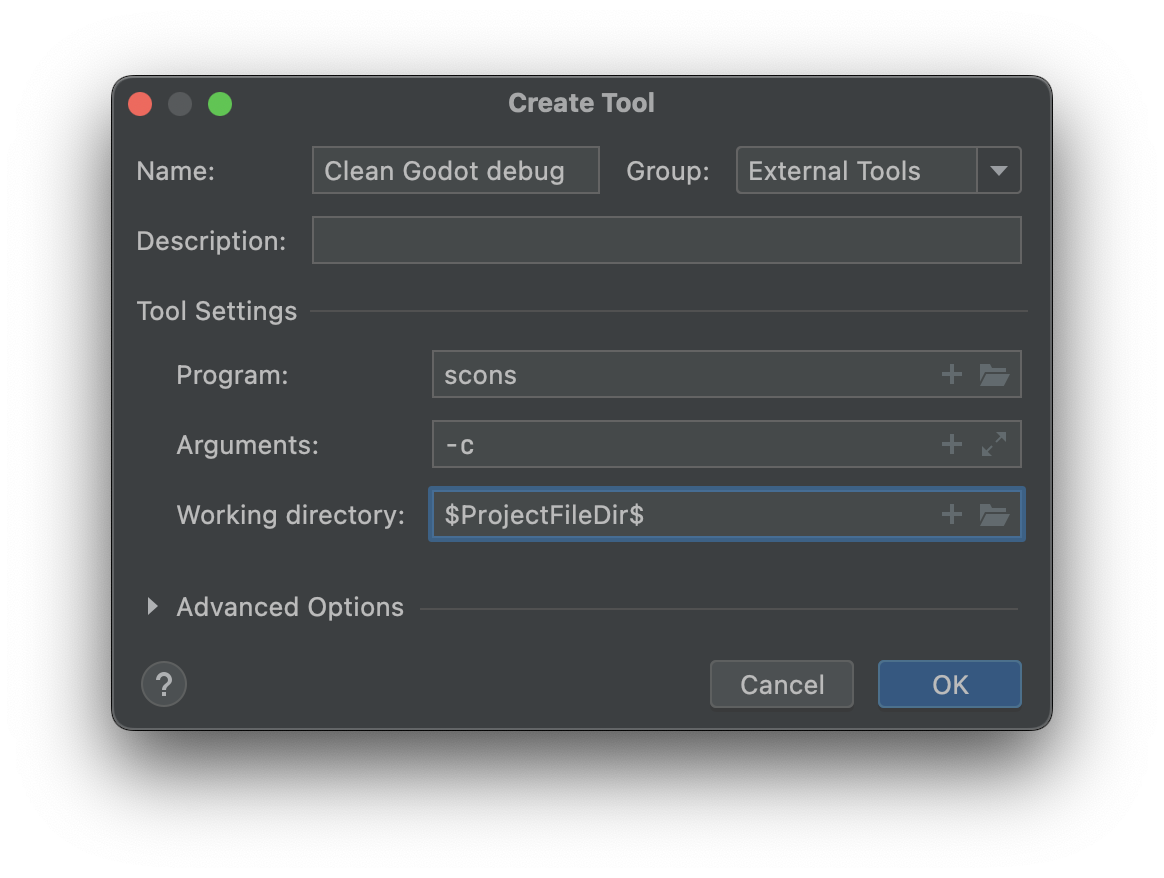
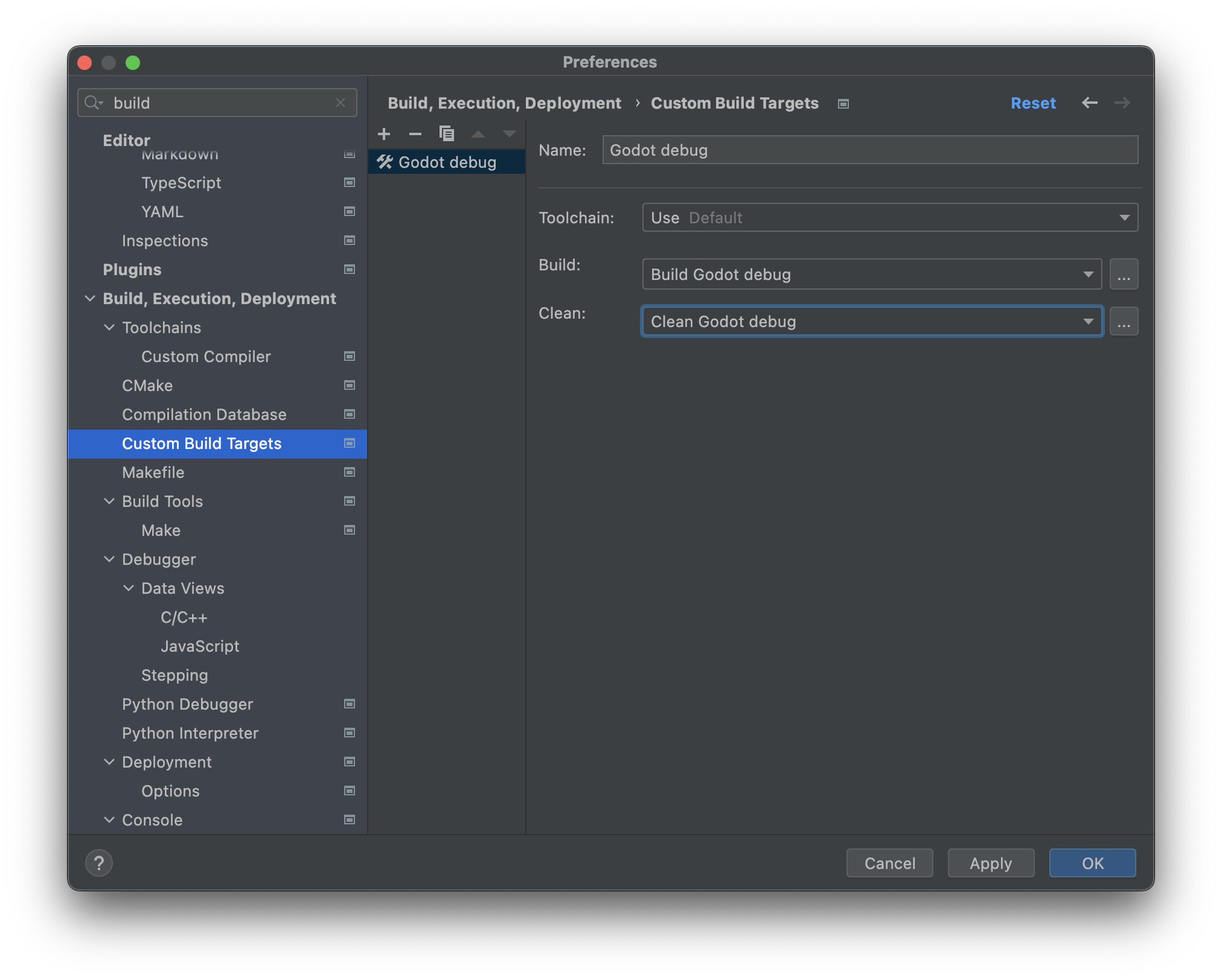
Close the External Tools dialog. In the Custom Build Target dialog for the custom
Godot debugbuild target, select the Build Godot debug tool from the Build select box, and select the Clean Godot debug tool from the Clean select box. Click OK to create the custom build target.
In the main IDE window, click Add Configuration.
In the Run/Debug Configuration dialog, click Add new..., then select Custom Build Application to create a new custom run/debug configuration.
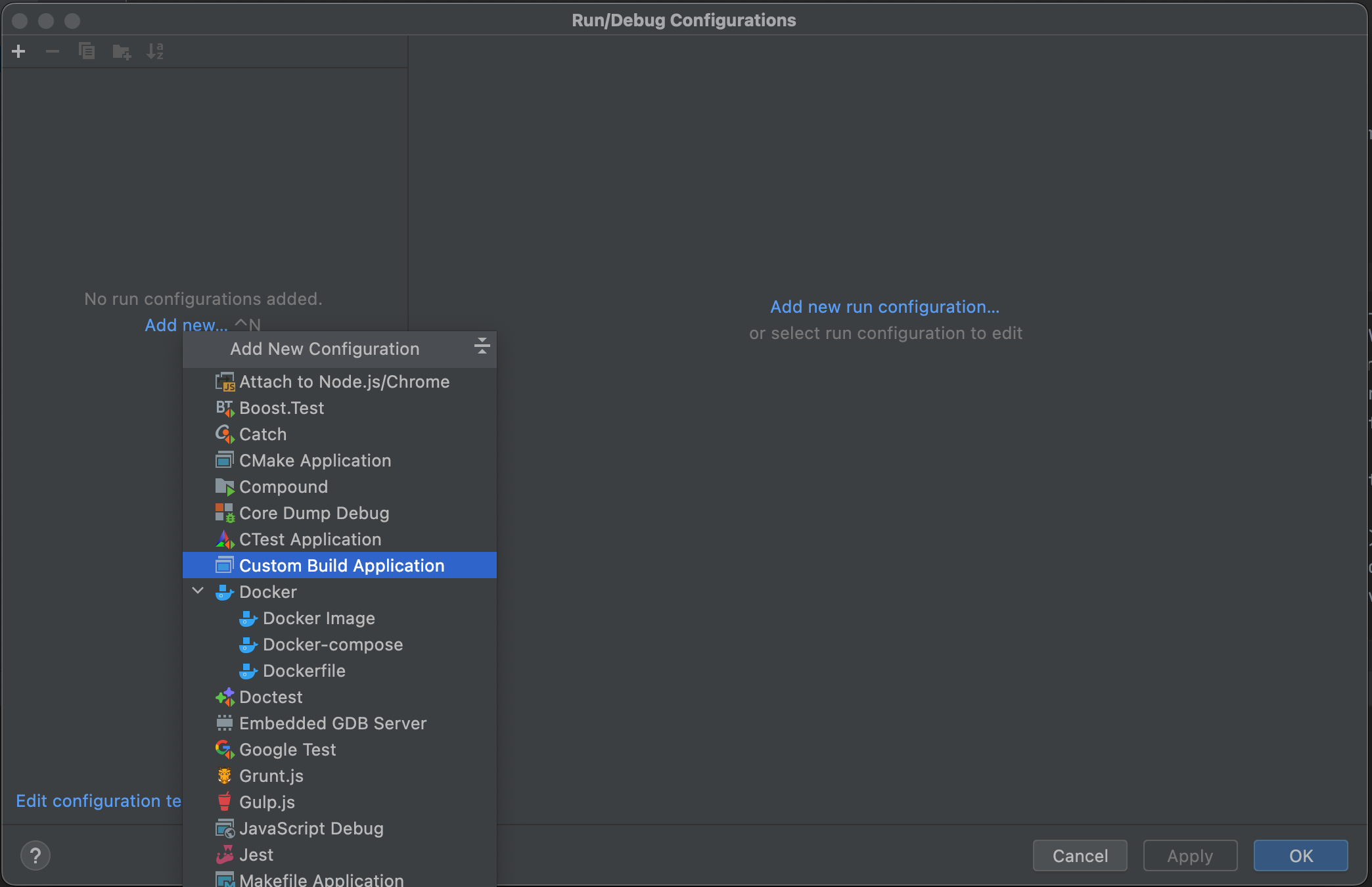
Give the run/debug configuration a name, e.g.
Godot debug, select theGodot debugcustom build target as the Target. Select the Godot executable in thebin/folder as the Executable, and set the Program arguments to--editor --path path-to-your-project/, wherepath-to-your-project/should be a path pointing to an existing Godot project. If you omit the--pathargument, you will only be able to debug the Godot Project Manager window. Click OK to create the run/debug configuration.
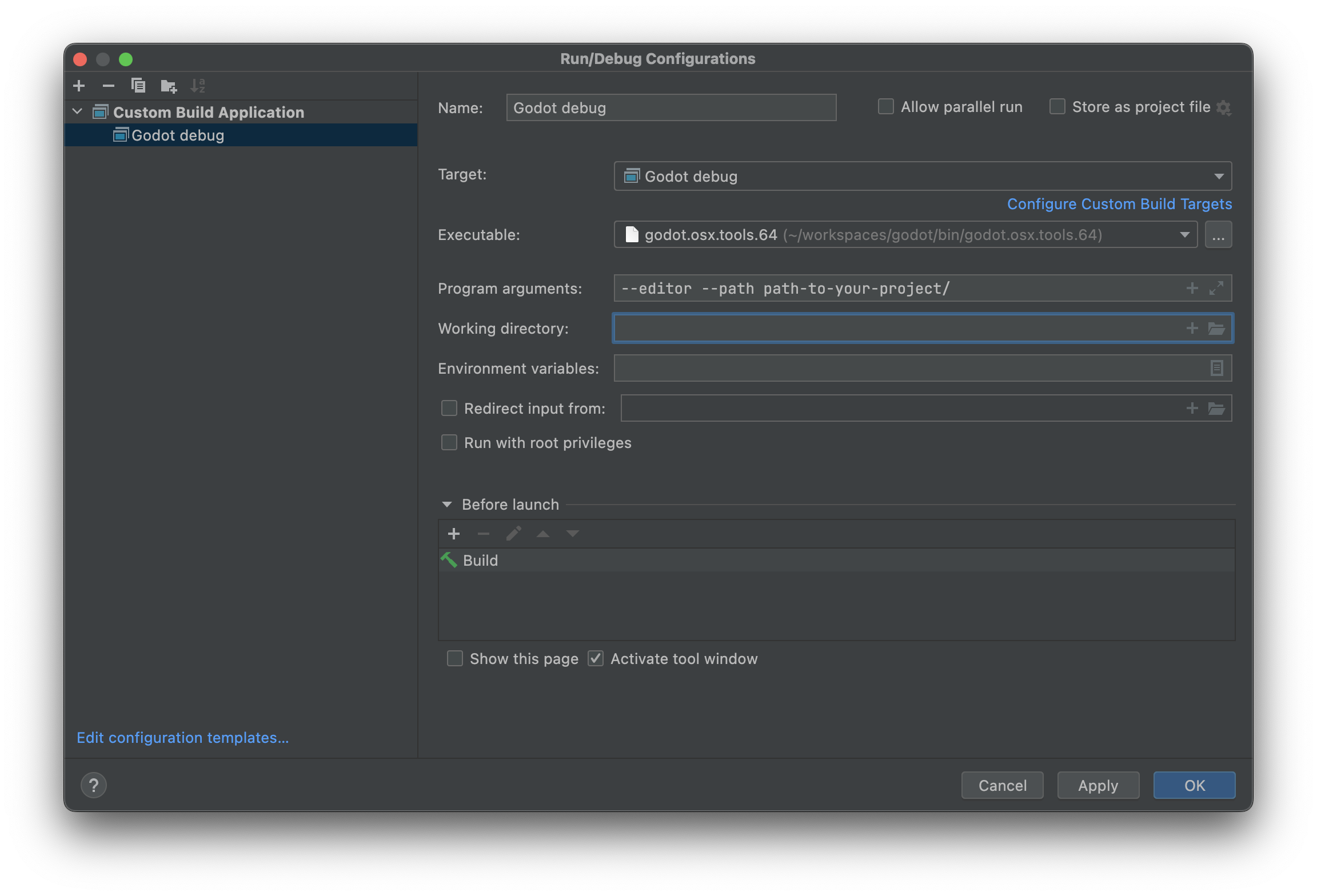
You can now build, run, debug, profile, and Valgrind check the Godot editor via the run configuration.

在运行场景时,Godot编辑器会生成一个独立的进程。可以在 CLion 中调试该进程,方法是选择 Run > Attach to process... ,输入 godot ,然后选择 pid (进程 ID)最大的 Godot 进程,该进程通常是正在运行的项目。
忽略目标文件和库文件
在 CLion 中构建 Godot 后,你可能会看到对象文件和库文件显示在 Project 视图中。
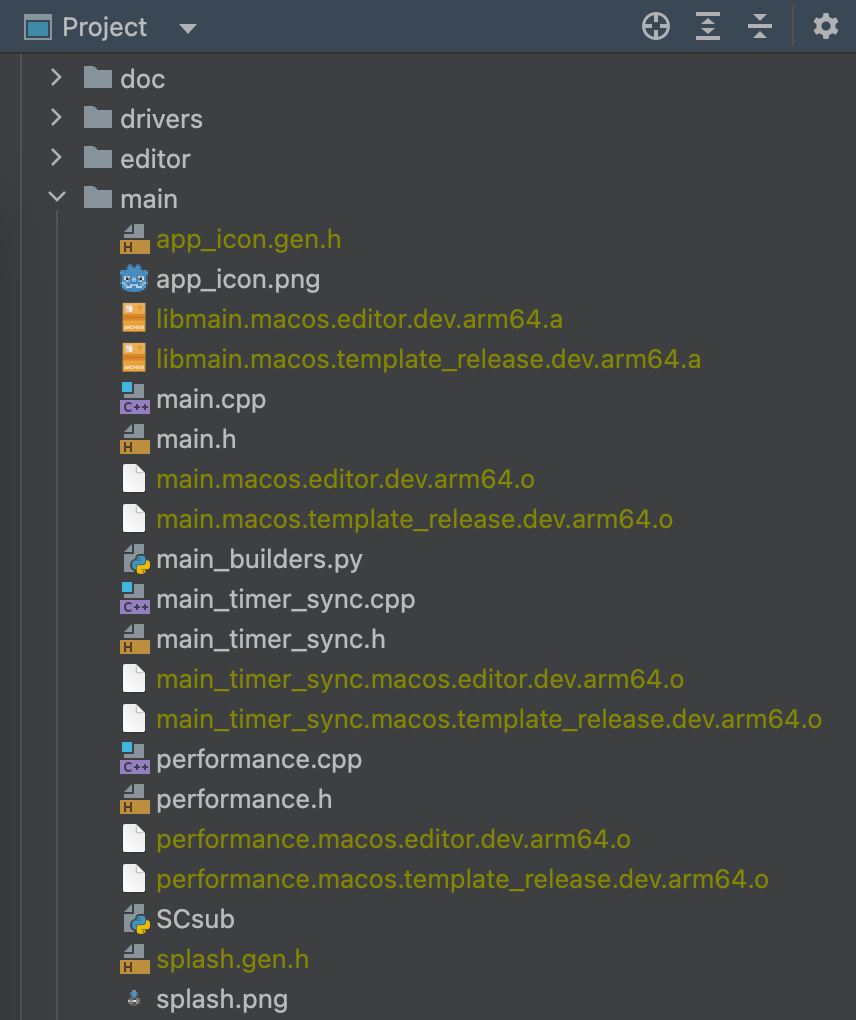
你可以配置 CLion 来忽略这些文件:
打开 CLion 并导航至 Preferences > Editor > File Types > Ignored Files and Folders
点击 + 按钮将
*.o和*.a添加到列表中。在 Windows 上,你需要添加*.obj和*.dll。
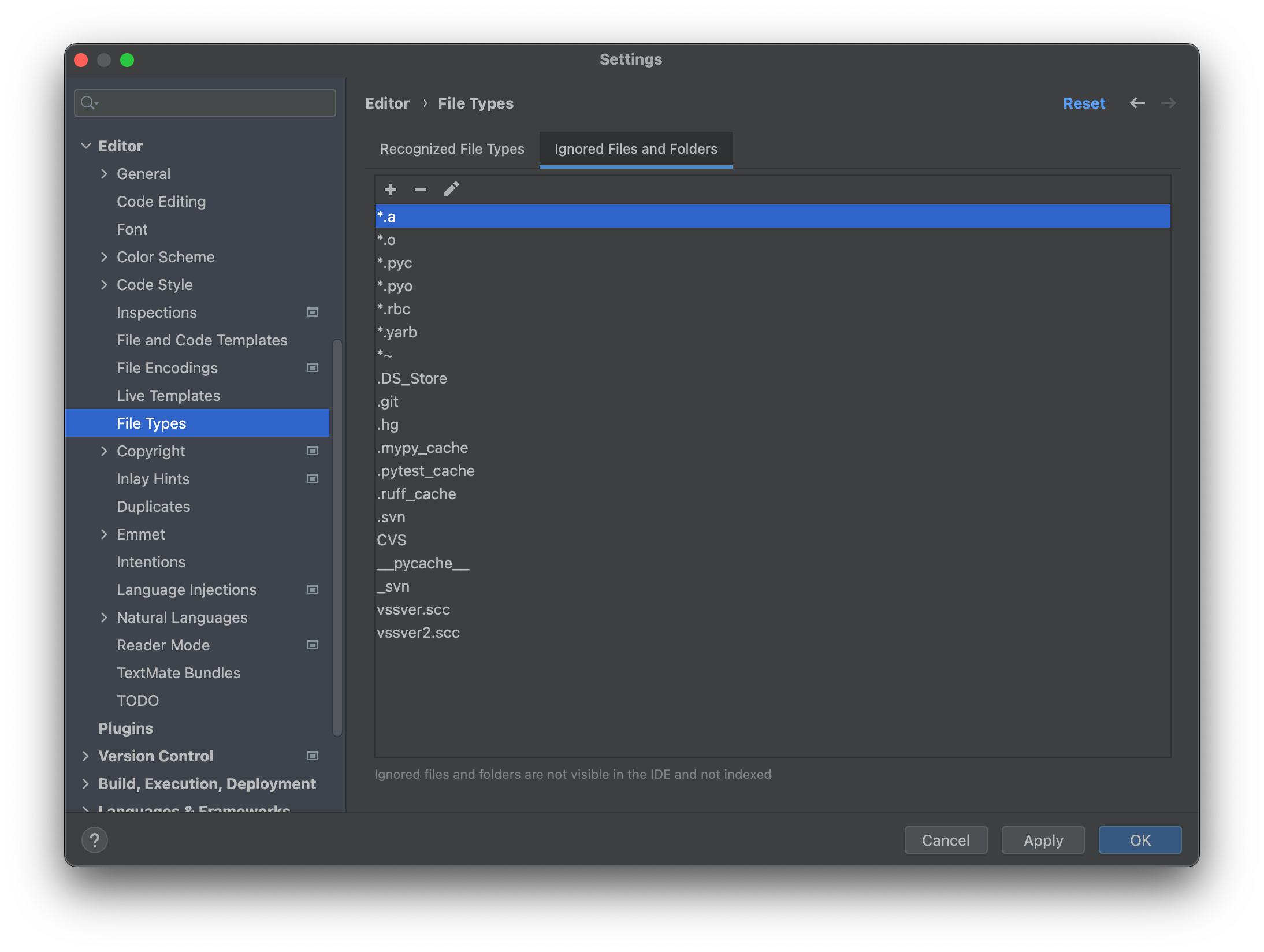
现在,Project 视图中应该就会忽略这些文件了。