输出面板
The output panel is found at the bottom of the screen. Click on Output to open it.
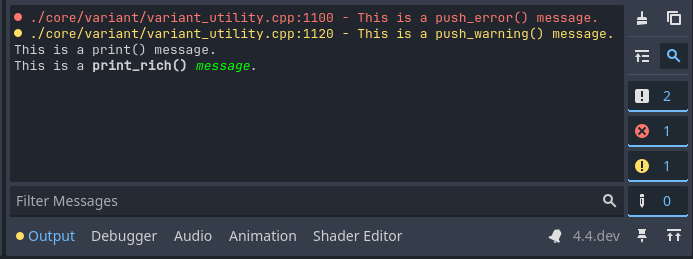
The output panel provides several features to make viewing text printed by the project (and editor) easier.
备注
The output panel automatically opens when running a project by default. You can control this behavior by changing the Run > Bottom Panel > Action on Play editor setting.
消息分类
消息分四种:
日志:项目打印的标准信息。显示为白色或黑色(取决于编辑器主题)。
Error: Messages printed by the project or editor that indicate a failure of some kind. Displayed in red.
Warning: Messages printed by the project or editor that report important information, but do not indicate a failure. Displayed in yellow.
编辑器:编辑器打印的消息,通常用于跟踪撤销/重做操作。显示为灰色。
筛选消息
By clicking on the buttons on the right, you can hide certain message categories. This can make it easier to find specific messages you're looking for.
You can also filter messages by their text content using the Filter Messages box at the bottom of the Output panel.
清空消息
When running the project, existing messages are automatically cleared by default. This is controlled by the Run > Output > Always Clear Output on Play editor setting. Additionally, you can manually clear messages by clicking the "cleaning brush" icon in the top-right corner of the Output panel.
打印消息
打印消息分以下几种方法:
print(): Prints a message. This method accepts multiple arguments which are concatenated together upon printing. This method has variants that separate arguments with tabs and spaces respectively: printt() and prints().
print_rich(): Same as
print(), but BBCode can be used to format the text that is printed (see below).push_error(): Prints an error message. When an error is printed in a running project, it's displayed in the Debugger > Errors tab instead.
push_warning(): Prints a warning message. When a warning is printed in a running project, it's displayed in the Debugger > Errors tab instead.
For more complex use cases, these can be used:
print_verbose(): Same as
print(), but only prints when verbose mode is enabled in the Project Settings or the project is run with the--verbosecommand line argument.printerr(): Same as
print(), but prints to the standard error stream instead of the standard output string.push_error()should be preferred in most cases.printraw():功能与
print()相同,但输出末尾不附加空行。这是唯一**not**在编辑器输出面板中显示的方法,仅输出到标准输出流,因此仍会被包含在文件日志中。print_stack():从当前位置打印堆栈跟踪信息。仅在从编辑器运行时,或项目以调试模式导出时才支持。
print_tree():打印相对于当前节点的场景树结构,适用于调试运行时动态创建的节点结构。
print_tree_pretty():功能与
print_tree()相同,但使用 Unicode 字符以呈现更接近树状结构的视觉效果。该功能依赖于 `制表符(框线绘制字符)<https://en.wikipedia.org/wiki/Box-drawing_characters>`__,因此在某些字体下可能无法正确显示。
To get more advanced formatting capabilities, consider using GDScript 格式字符串 along with the above printing functions.
参见
引擎的日志功能在:ref:logging <doc_logging> 文档中有详细说明。
打印富文本
Using print_rich(), you can print rich text to the editor Output panel and standard output (visible when the user runs the project from a terminal). This works by converting the BBCode to ANSI escape codes that the terminal understands.
In the editor output, all BBCode tags are recognized as usual. In the terminal
output, only a subset of BBCode tags will work, as documented in the linked
print_rich() method description above. In the terminal, the colors will look
different depending on the user's theme, while colors in the editor will use the
same colors as they would in the project.
备注
ANSI escape code support varies across terminal emulators. The exact colors displayed in terminal output also depend on the terminal theme chosen by the user.